
Create Your First Image with ShopViz
Welcome to ShopViz! This guide will walk you through creating your first AI-generated image for your Shopify store. In just a few minutes, you’ll learn how to generate professional product images and upload them directly to your store.
What You’ll Learn
- How to navigate to the content generation page
- Using AI to generate creative prompts
- Creating your first image
- Uploading images to Shopify
Let’s get started!
Step 1: Navigate to Content Generation
Start from your ShopViz dashboard and look for the Quick Actions section.
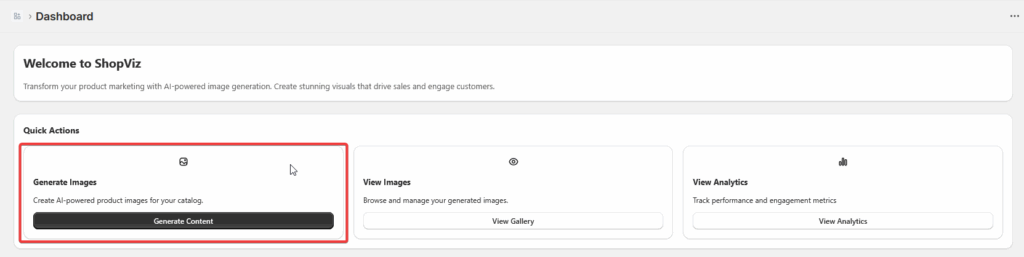
Click on the “Generate Content” button in the Generate Images card. This will take you to the content generation page where the magic happens!
Tip: You can also navigate to the generation page using the “Generate Content” link in the left sidebar navigation menu.
Step 2: Understanding the Generation Interface
When you arrive at the content generation page, you’ll see that “Generate from Prompt” (text → image) is already selected by default. This is perfect for creating your first image!

The interface is designed to be intuitive, with all the essential controls easily accessible.
Step 3: Generate Creative Ideas
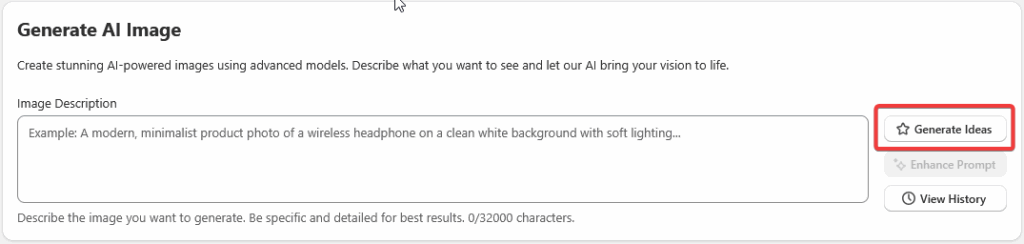
One of ShopViz’s most powerful features is its ability to help you create effective prompts. Instead of staring at a blank text field, let the AI assist you!
Click on the “Generate Ideas” button located below the prompt field.
Step 4: Select Your Image Type
A modal window will open with various template options. For this tutorial, select “Website Hero Image” from the available templates.
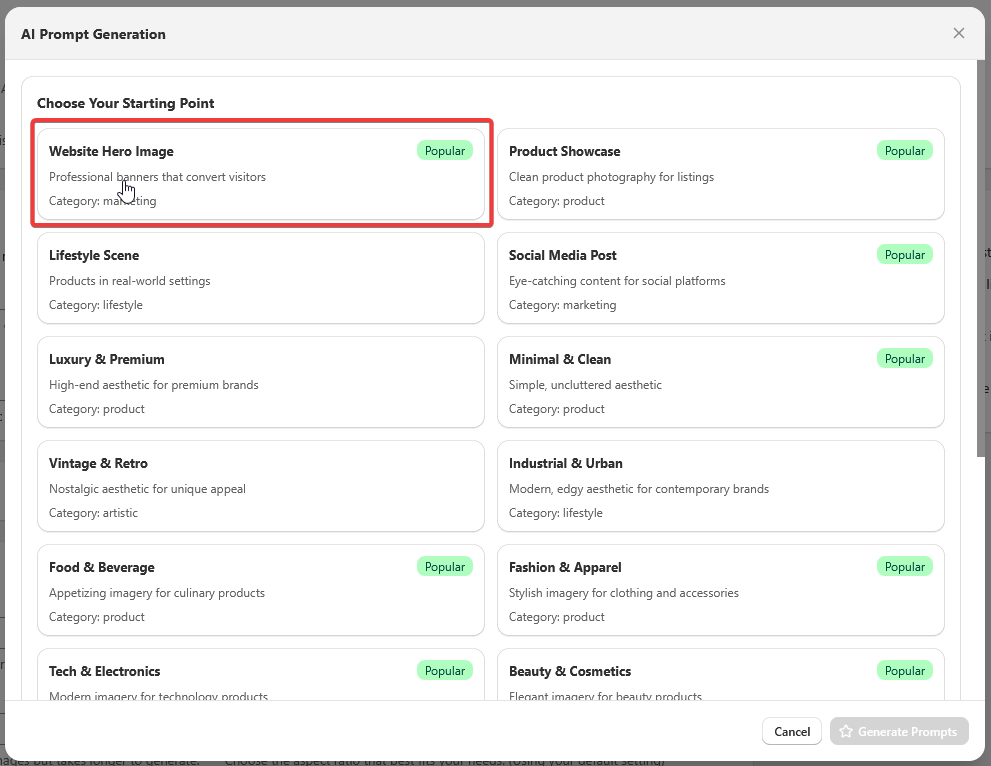
Website Hero Images are perfect for:
- Homepage banners
- Collection headers
- Promotional campaigns
- Landing pages
Note: Each template is optimized for specific use cases. The Website Hero Image template will generate prompts tailored for eye-catching, conversion-focused imagery.
Step 5: Describe What You Want
Now it’s time to tell the AI what kind of image you’re looking for.
In the “Describe what you want” field, enter a brief description of your desired image. For example:
- “Modern athletic shoes in an urban setting”
- “Organic skincare products with natural ingredients”
- “Cozy home office setup with plants”
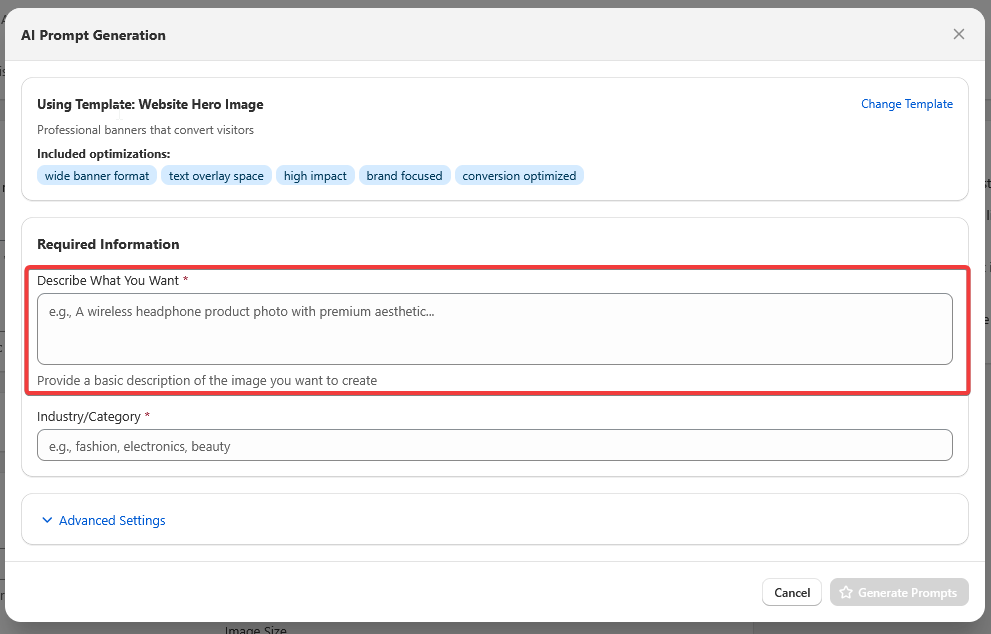
Be specific but concise – the AI will enhance your description with professional details.
Step 6: Specify Your Industry
In the “Industry/Category” field, enter your business sector. This helps the AI understand your brand context and generate more relevant imagery.
Examples:
- “Fashion & Apparel”
- “Beauty & Cosmetics”
- “Home & Garden”
- “Sports & Fitness”
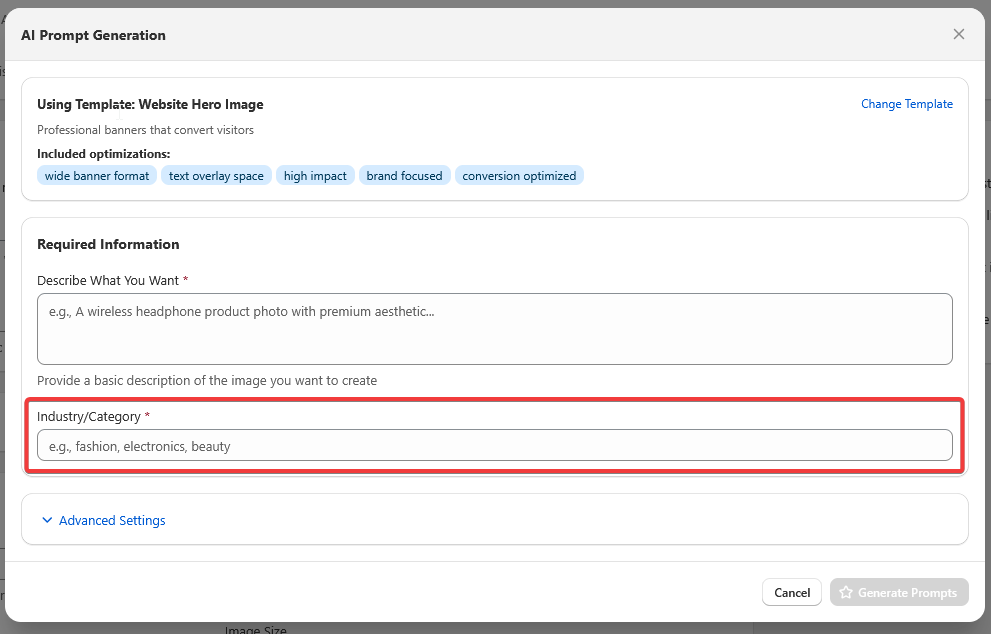
Pro Tip: The more specific you are about your industry, the better the AI can tailor the visual style to match your market expectations.
Step 7: Review Advanced Settings
The advanced settings are pre-configured with optimal defaults, but you can expand this section to fine-tune your preferences if desired.
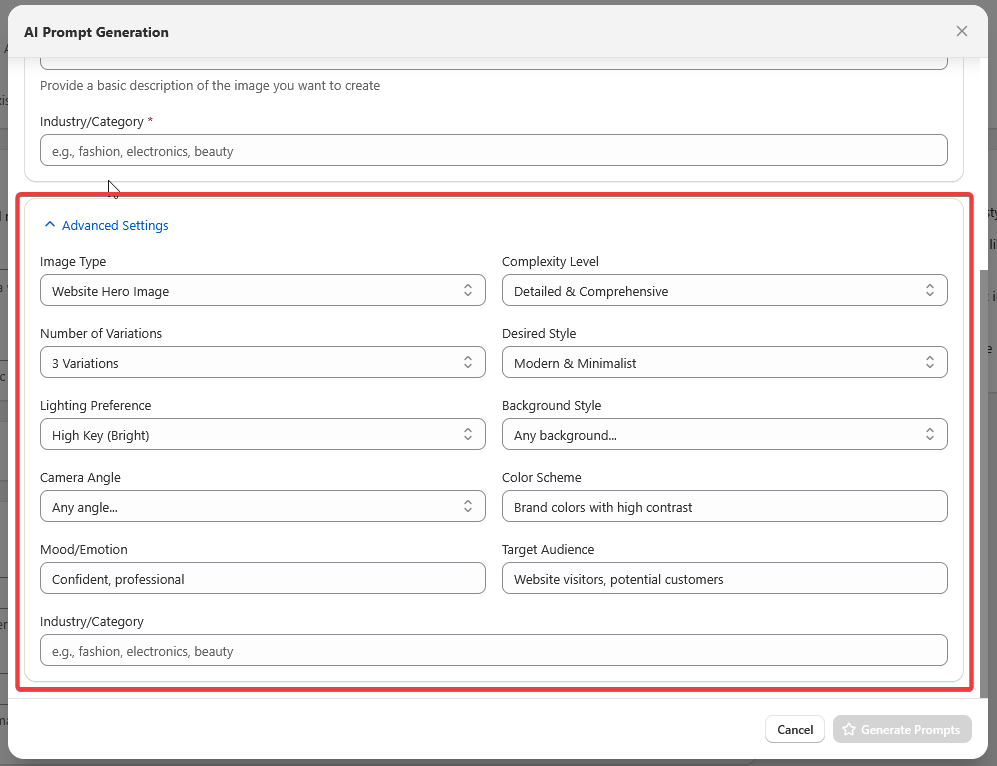
Available customization options include:
- Style: Modern, Vintage, Minimalist, etc.
- Lighting: Natural, Studio, Dramatic, etc.
- Background: Clean white, Environmental, Gradient, etc.
- Camera Angle: Eye level, Low angle, Close-up, etc.
For your first image, the defaults work great!
Step 8: Generate Your Prompt
Click the “Generate Prompts” button at the bottom of the modal.
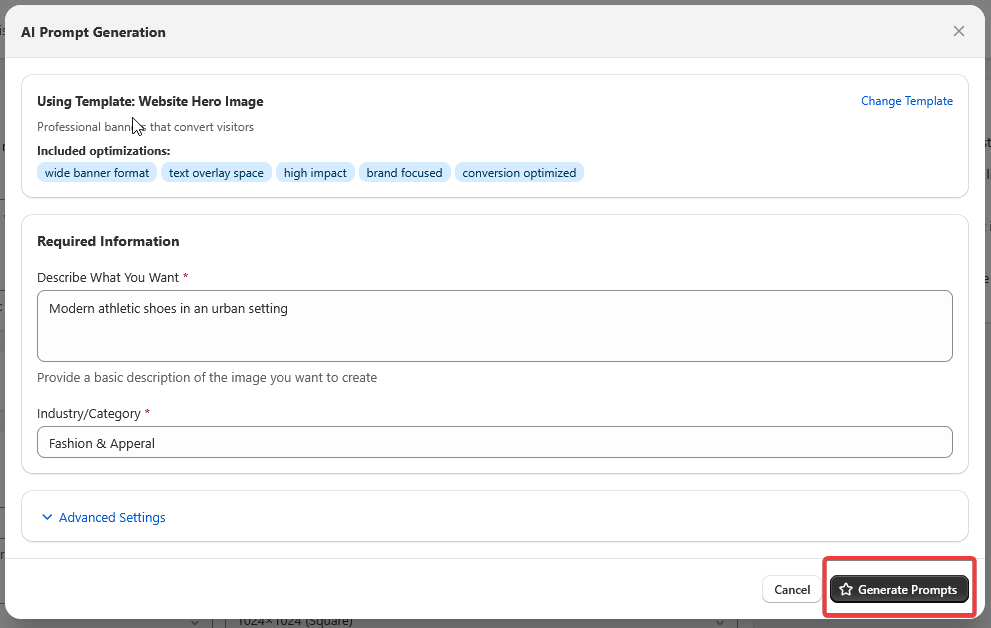
The AI will create several professional prompt variations based on your input. Each prompt is crafted to produce high-quality, commercially viable images.
Step 9: Select and Apply Your Prompt
Review the generated prompts and select the one that best matches your vision. Click the “Apply” button next to your chosen prompt.
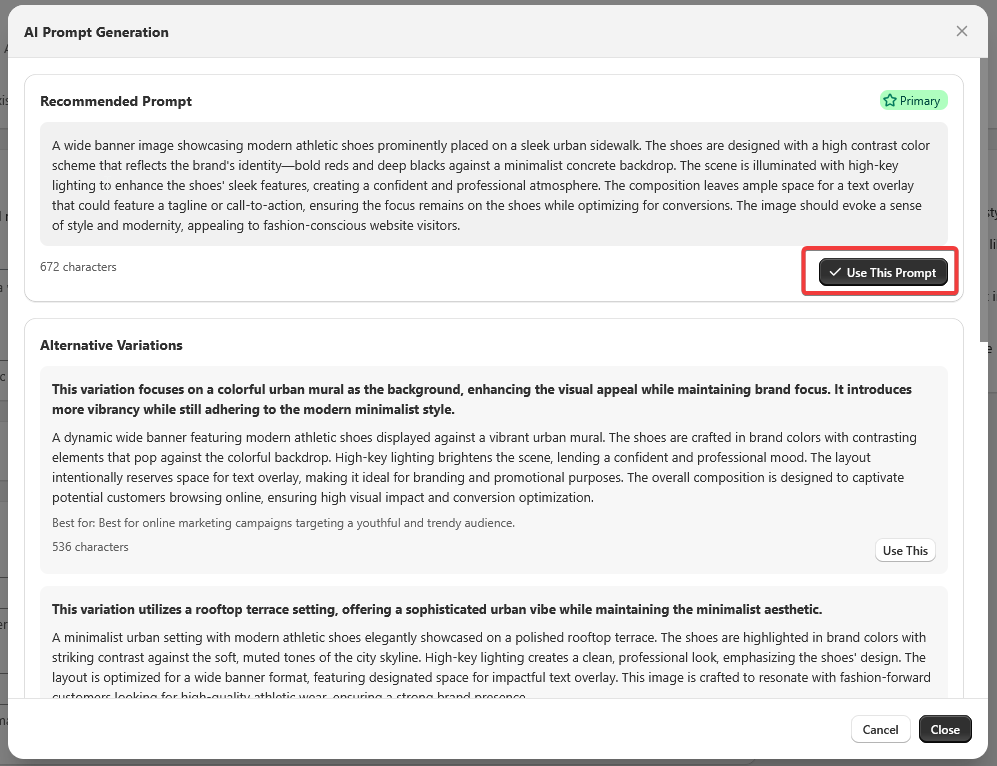
The selected prompt will automatically populate the main prompt field on the generation page.
Step 10: Generate Your Image
Now for the exciting part! Click the “Generate Image” button to start the image creation process.
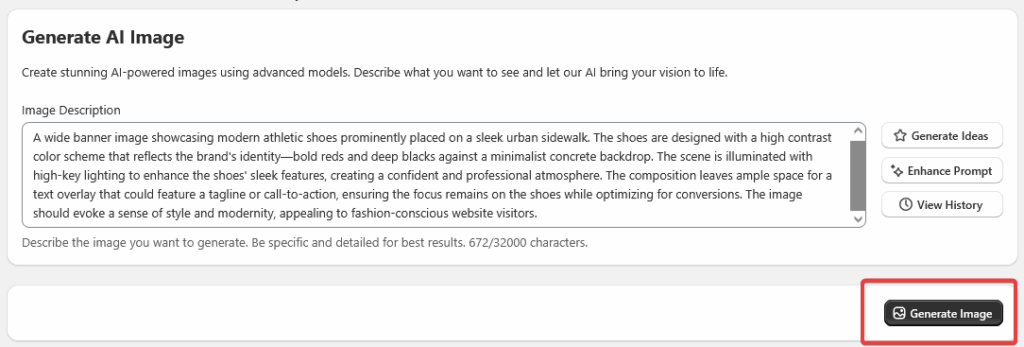
You’ll be redirected to the Job Status page where you can monitor the generation progress.
Step 11: Monitor Generation Progress
The Job Status page shows real-time updates as your image is being created.

Generation typically takes 30-60 seconds. You’ll see the status change from:
- Queued → Processing → Completed
Note: You can navigate away from this page and return later – your job will continue processing in the background.
Step 12: View Your Generated Image
Once the status shows “Completed”, your image is ready!

Click on “Content Gallery” in the navigation menu or use the “View All Images” button to see all your generated images.
Step 13: Access the Content Gallery
In the Content Gallery, you’ll find all your generated images organized chronologically.
Each image card displays:
- Preview thumbnail
- Generation date and time
- Quick action buttons
- Credit cost information
Step 14: Upload to Shopify
Find your newly generated image and click the “Upload to Shopify” button on the image card.
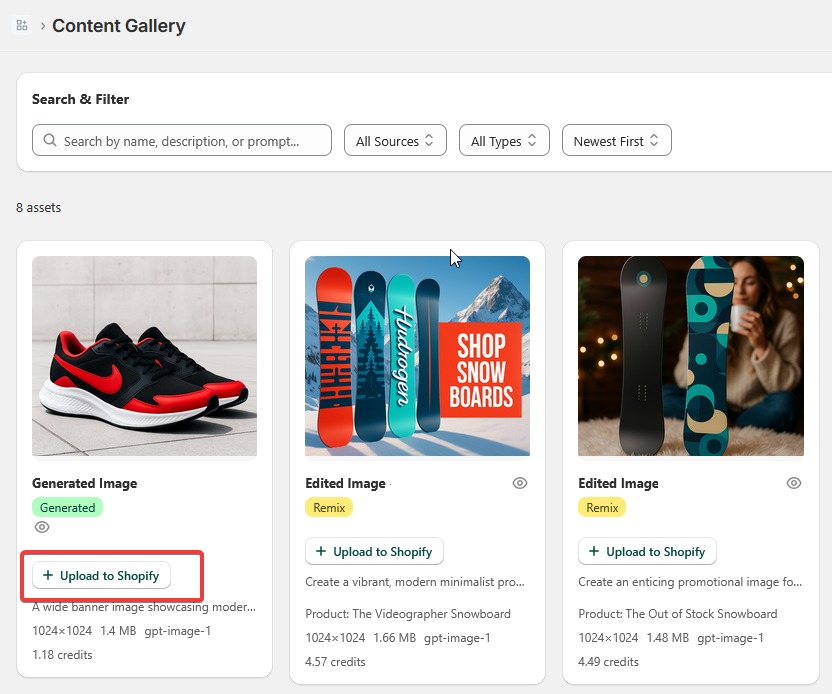
This opens the Shopify Upload modal where you can choose how to use your image.
Step 15: Configure Upload Settings
In the upload modal, select “Shopify Files” as your upload destination.
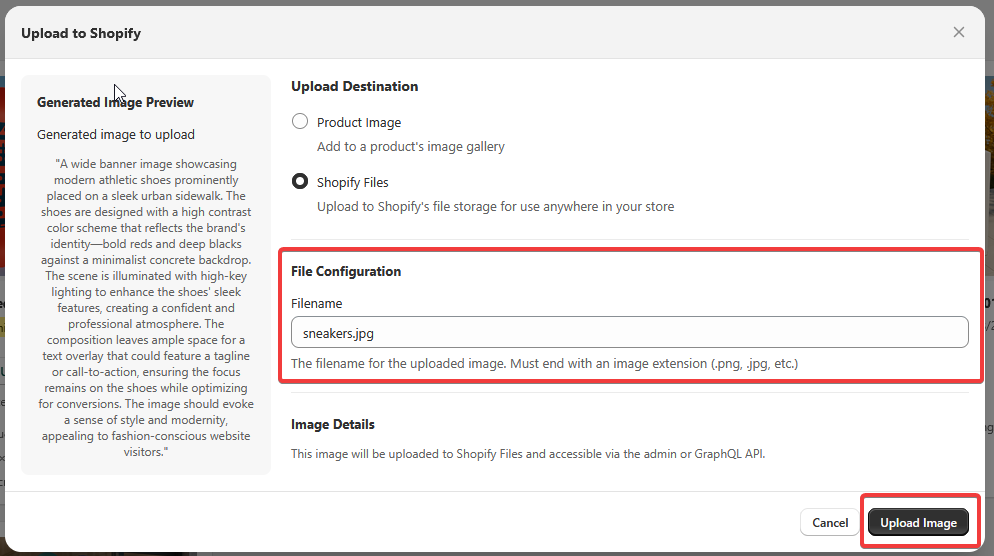
Enter a descriptive name for your image in the filename field. For example:
- “hero-summer-collection-2024.png”
- “product-athletic-shoes-urban.jpg”
- “banner-holiday-sale.png”
Best Practice: Use descriptive filenames with hyphens between words. This helps with organization and SEO.
Step 16: Complete the Upload
Click the “Upload Image” button to send your image to Shopify Files.
You’ll see a success message confirming the upload. Your image is now available in your Shopify admin under Content > Files.
What’s Next?
Congratulations! You’ve successfully created and uploaded your first AI-generated image with ShopViz.
Here are some next steps to explore:
- Try Different Templates: Experiment with Product Showcase, Social Media, and other templates
- Batch Generation: Generate multiple variations of an image at once
- Edit Existing Products: Use the “Edit from Product” mode to enhance your current catalog
- Explore Advanced Settings: Fine-tune styles, lighting, and composition for brand consistency
Helpful Resources:
- Credits System: Each image generation uses credits. Monitor your balance in the account section.
- Image History: All generated images are saved in your Content Gallery for 30 days.
- Bulk Operations: Upload multiple images to different products using the batch upload feature.
Troubleshooting Tips
Image generation is taking too long?
- Normal generation time is 30-60 seconds
- High-demand periods may cause slight delays
- Check your internet connection
Can’t see the “Generate Ideas” button?
- Ensure you’re in “Generate from Prompt” mode
- Try refreshing the page
- Clear your browser cache if issues persist
Upload to Shopify failed?
- Verify you have the necessary permissions in Shopify
- Check that your Shopify plan supports file uploads
- Ensure the image size is under 20MB
Get Creative!
Now that you know the basics, it’s time to unleash your creativity. ShopViz’s AI is capable of generating stunning, professional images that can transform your store’s visual appeal.
Remember:
- Experiment freely – Try different descriptions and styles
- Save your favorites – Build a library of successful prompts
- Stay consistent – Develop a visual style that matches your brand
Happy creating with ShopViz!
Need help? Contact our support team or check out our comprehensive documentation for more advanced techniques and tips.